

HOW TO: Self-Service Bank Account Changes
Here are instructions on how to initiate a change to your deposit bank account from within your Gravity Dashboard account
*Note: only owners and authorized signers are able to complete the steps presented below
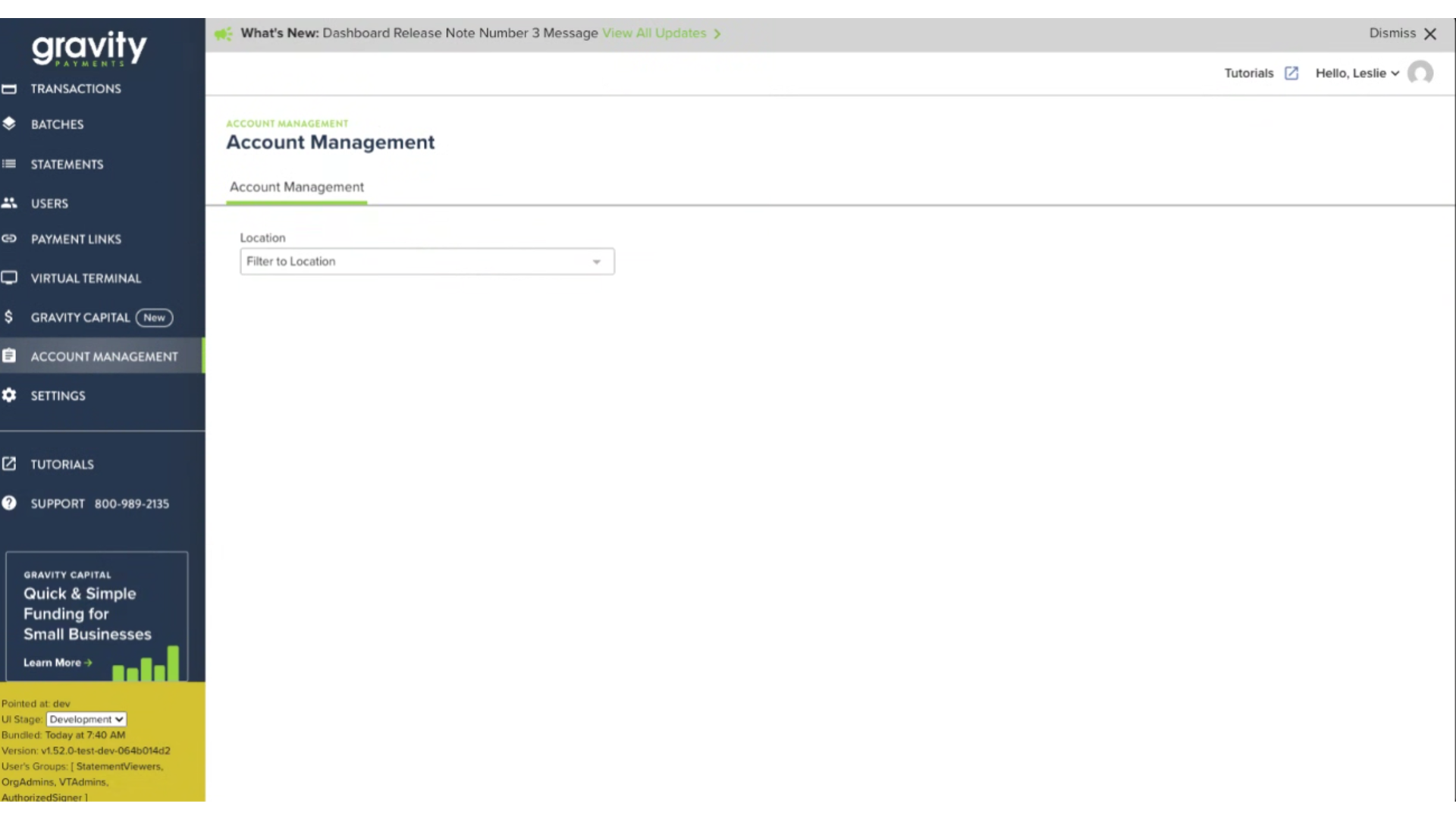
Step 1 – Click on “Account Management” in the left-hand navigation bar
Step 2 – For security verification, you’ll then be led through Plaid’s identity verification process. You’ll need access to a cell phone and basic identification documentation to proceed
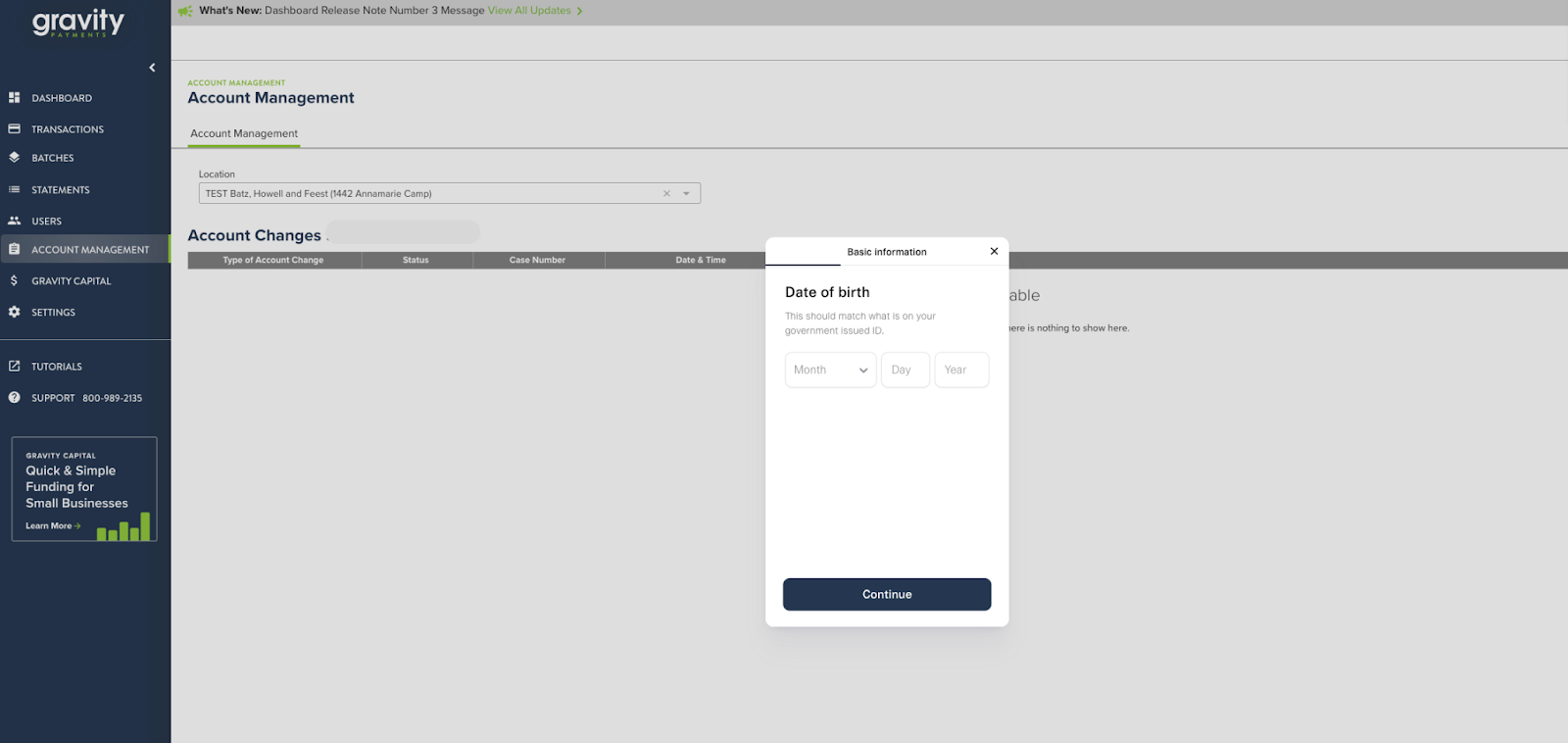
Step 3 – Once verified, a prompt will appear to “Connect Instantly” or “Enter Manually”
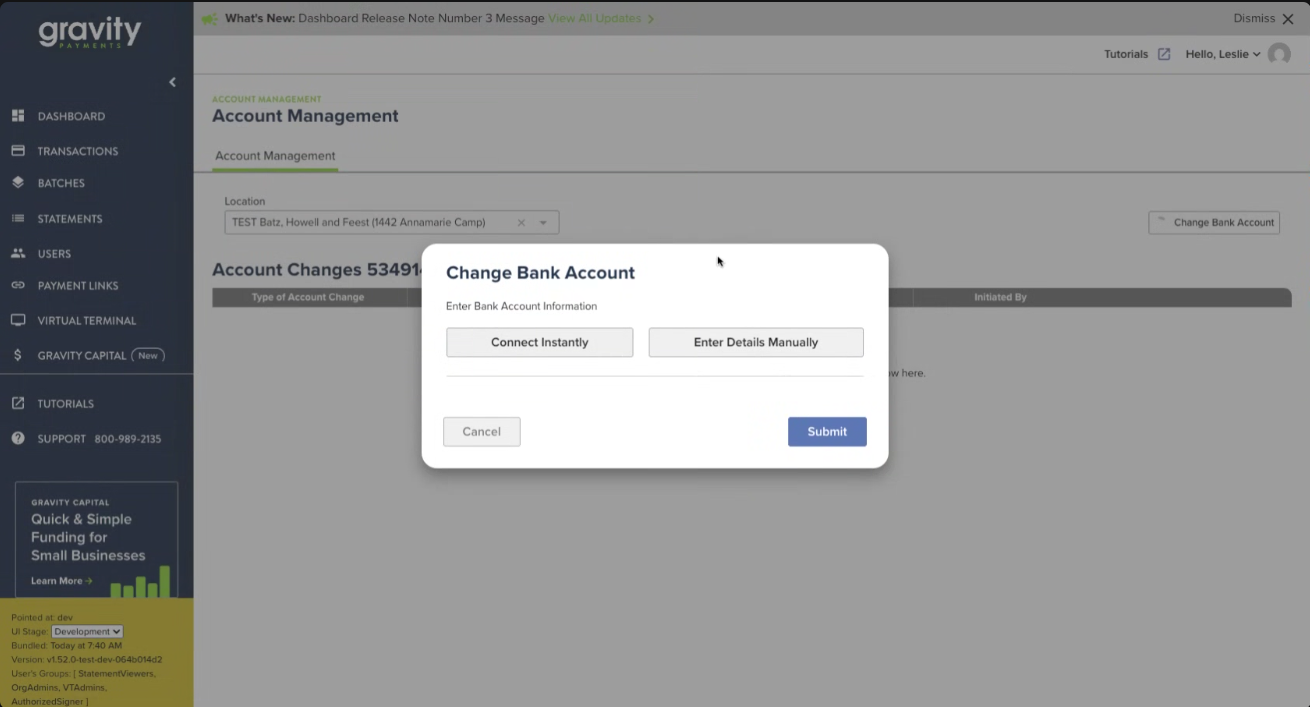
If you select “Connect Instantly” you’ll be led through Plaid’s secure program. You’ll connect directly to your bank, log in and link to your existing account. After connecting you’ll be asked to select an effective date for the change, sign and submit the bank change request.
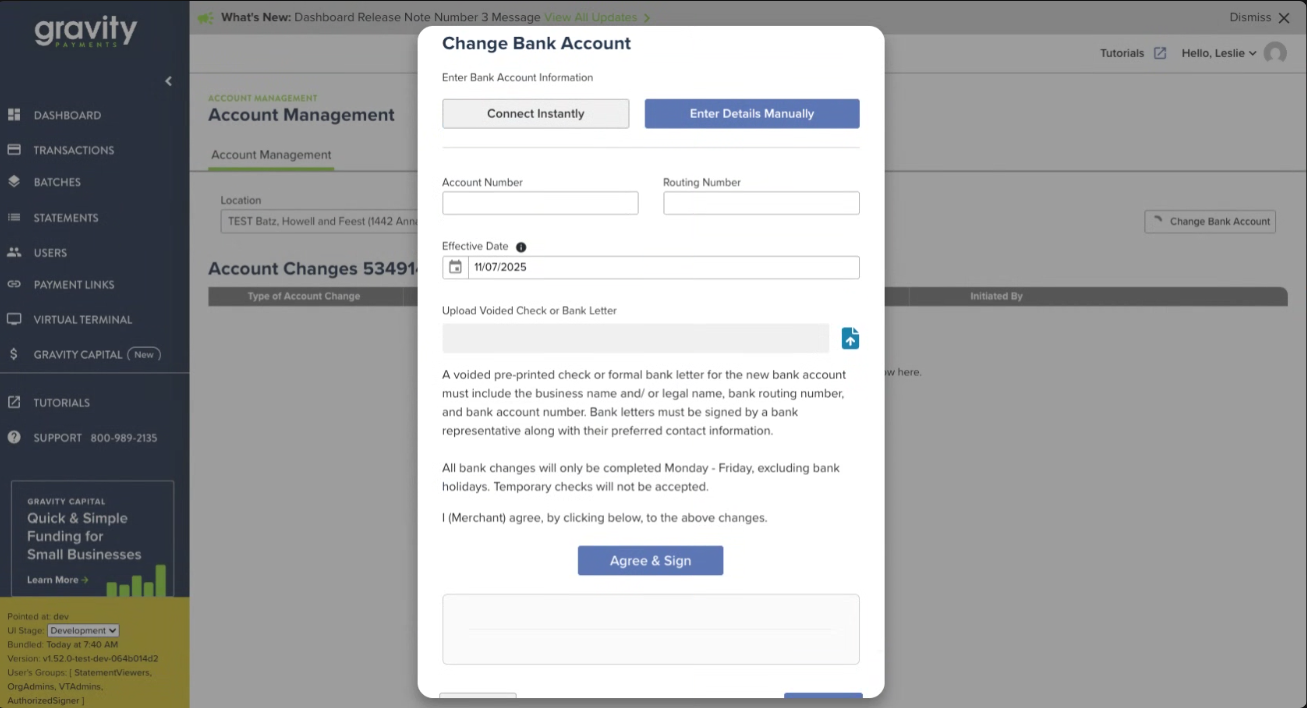
Should you opt to “Enter Manually” you will be asked to enter the account number and routing number of your new bank account. You’ll select an effective date for the change, and upload an image of a voided check or formal bank letter from the account before signing and submitting the form.
Step 4 – After submitting the change request, you can track the status of the change from the Account Management tab. Gravity’s team will work to complete the update to your account. You’ll then receive a confirmation e-mail verifying the change has been made

Requests submitted before 2:00 PM PST aim to be completed the same day, but cannot be guaranteed. Requests submitted after 2:00 PM PST will be processed the next business day. Should you have any issues with the process above, reach out to our Support team by calling 866-701-4700 or e-mailing [email protected]